
Creating a PowerSchool Parent Portal Account
Parents and students can use the parent portal to access student attendance, student schedules, class assignments and scores, report card/progress report grades, and email links to teachers. Parent portal accounts MUST be created on a computer instead of a mobile device. Once you’ve created your parent portal account, you can download the mobile app. The mobile app is designed for iPhones/iOS, tablets, and Google/Android devices. Please note you must have a Parent/Student Portal account to use the mobile app. Please also note that certain features available on the Parent/Student Portal website are not available on the mobile app.
Steps to Creating a Parent Account
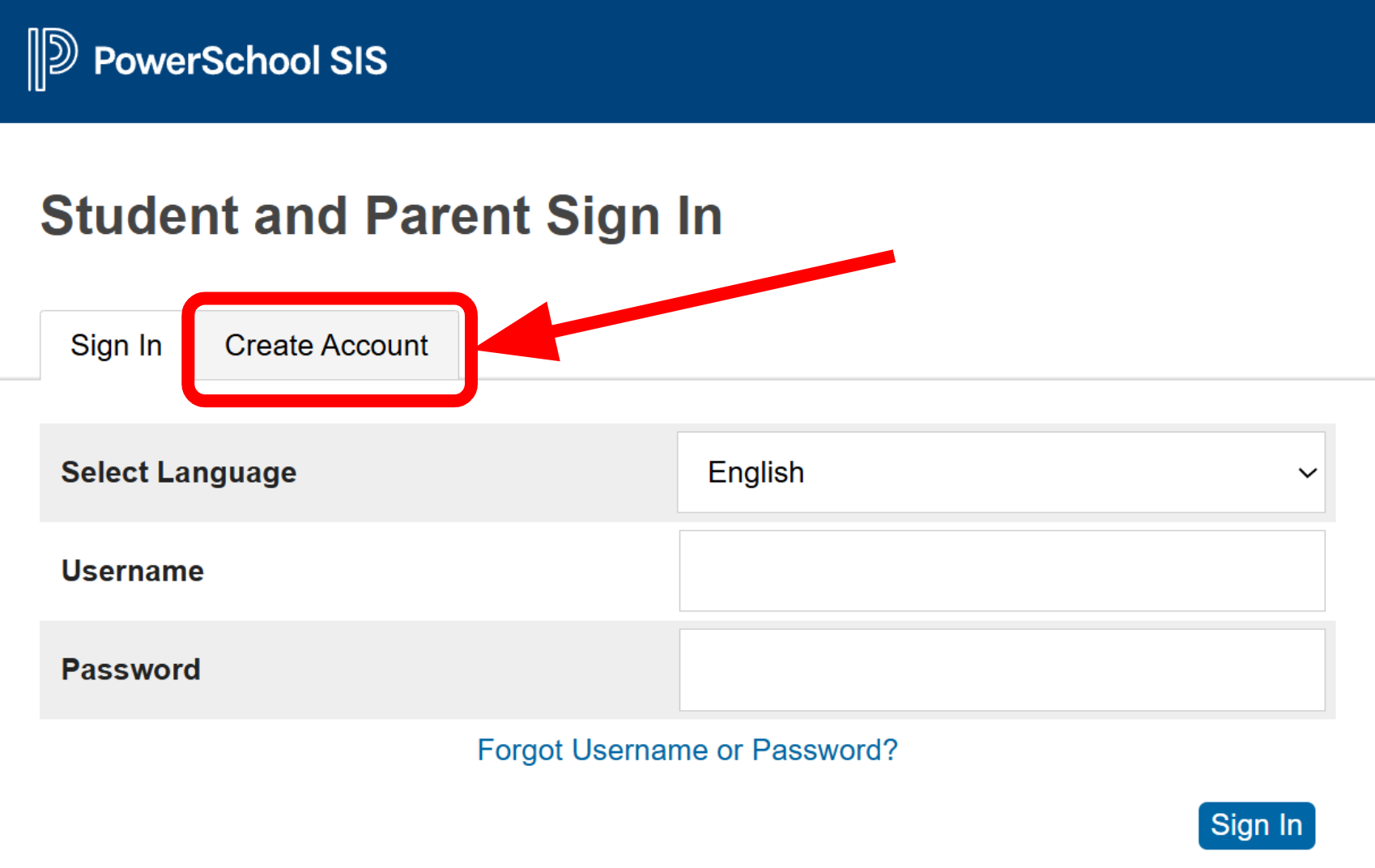
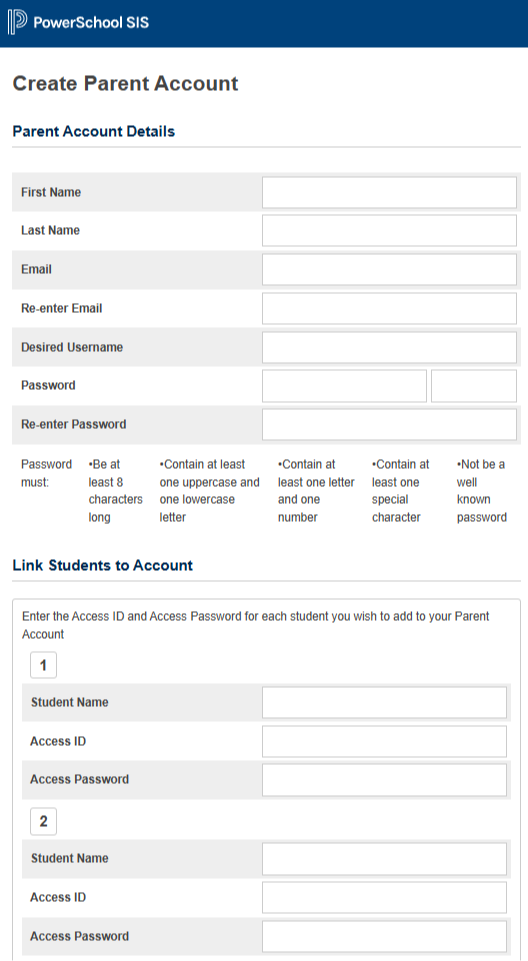
Download the PowerSchool App on Your Device
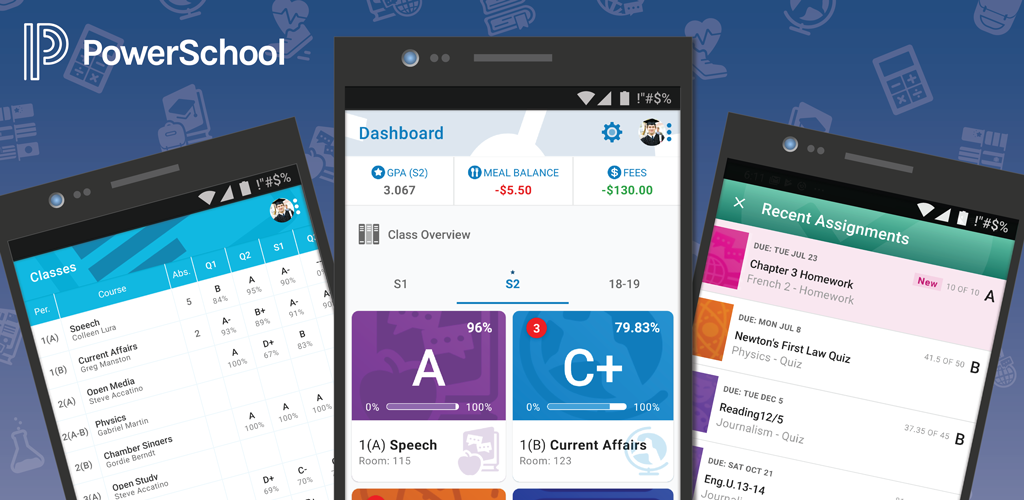
FOLLOW THE STEPS BELOW TO GET THE POWERSCHOOL APP ON YOUR DEVICE - INCLUDING TABLETS, IPADS, AND SMARTPHONES.
Before you begin: Make sure you have already created a PowerSchool Parent Portal account. You must have an account to use the mobile app.
If you can log in to the Parent Portal website, you should be able to log in to the app.
Step 1: On your tablet, iPad, or smartphone, open your device’s App Store (Apple App Store or Google Play Store).
Step 2: Search for PowerSchool and install the app.
Step 3: Open the app after it finishes installing.
Step 4: When prompted, connect to your district using one of the following options:
Enter the District Code: TRXG (for Charter Institute at Erskine)
OR search for Charter Institute at Erskine in the list of districts for South Carolina
Step 5: On the sign-in screen, enter your username and password to log in.